Repair shop owners!
You’ve been thinking about switching your repair shop software for weeks. Maybe months. Your current system is breaking, the support team is not responsive, and your team is filling the gaps with spreadsheets.
However, every time you think about switching, something stops you. What if the migration breaks? What if customer data gets lost? Above all, what if your team can’t figure out the new software?
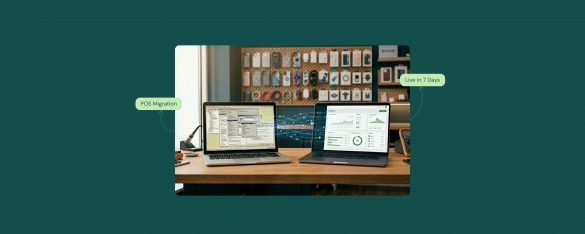
But, the good part is that software migration is not the same as it used to be a few years back. Now, it’s more structured, and most shops complete in 7 days or less.
This repair shop software migration guide walks you through exactly what happens day by day.
What Shop Owners Actually Say About Switching
Before we dive into RepairDesk onboarding process, here is what real prospects shared in the last few conversations:
Concerned about complexity and setup time required to migrate existing systems.
Another customer shared his concern:
Concerned about system reliability and wants confidence that the conversion can be completed cleanly within the 4-5 week timeframe.
If you have thought of any of these, you’re thinking like hundreds of other shop owners. The fear is normal. The fix is the process, and a clear timeline so you know what to expect.
Why Migration Feels Scary (And Why It Doesn’t Have to Be)
According to Gartner, 83% of data migration projects fail or exceed their budgets and timelines. No wonder most shop owners avoid switching for as long as they can.
Migration anxiety usually comes from three places:
- Bad Past Experiences: repair business owners have tried software switches before that went sideways. For instance, they faced lost data, broken integrations, weeks of downtime. That memory sticks.
- Unclear Timelines: When the new vendor says “it depends on your data,” you have no way to plan. You can’t tell your team. You can’t budget the time.
- Uncertainty about Training: Switching the system is one thing. Getting your team members across multiple locations to actually use it the right way is another.
Every one of these fears is solvable. The fix is a process you can see, a timeline you can trust, and a team that handles the heavy lifting. Here is what that looks like at RepairDesk.
The First 30 Days: What Actually Happens
Day 1: Kickoff Call
The day you sign up, you get matched with a dedicated account manager. The kickoff call lasts about an hour and covers four things:
- Your current setup (what software you’re on, how many locations, how many staff)
- Your data (customers, tickets, inventory, payment history)
- Your timeline (when do you need to be live)
- Your priorities (what matters most to you in the first 30 days)
By the end of Day 1, you walk away with a written migration plan, a shared timeline, and the contact details of the person handling your account.
Days 2-6: Data Migration, Configuration, and Training
Your account manager pulls your customer records, inventory data, and ticket history from your current system. You don’t do this part. The RepairDesk team handles the technical work, and you review the output.
What gets migrated:
- Customer profiles and contact details
- Repair ticket history (open and closed)
- Inventory and SKU data
- Past invoices
In parallel, your account manager configures your store settings including workflow stages, user roles, and customer-facing display options. Nothing is live yet. You’re getting a hands-on look at what switching POS systems for repair shops actually feels like.
Your data is in and the system is configured. Now your employees need to learn it.
Training happens in three formats so every team member can learn the way they prefer:
- Live Training Session: With your account manager
- Video Tutorials: In the knowledge base, covering every core workflow
- One-on-One Support: For shop owners and managers who want deeper walkthroughs
Most front-counter staff can create their first ticket and process their first invoice within 30 minutes of training. Technicians and managers usually need a few hours to feel comfortable with the deeper features (multi-location reporting, inventory management, etc.).
By the end of day 6, your team has run through the system and can learn what you actually get with RepairDesk, and feels comfortable with the core workflows.
Day 7: Go-Live
You go fully live on Day 7. The old system gets archived (read-only access stays available for reference). RepairDesk becomes your one source of truth.
Your account manager stays on call for the rest of the week to handle any questions or last-minute setup tweaks.
Days 8-30: Settling In and Unlocking Features
Most shops are running smoothly within the first week. The next 3 weeks are about settling in and learning the deeper features you didn’t touch during initial training:
- Multi-location reporting
- Advanced inventory automation (low stock alerts, supplier ordering)
- Customer communication automation (SMS templates, review requests)
- Loyalty programs
If you get stuck at something, you can set up a call with your account manager and they can help you resolve any issues and unlock features you haven’t tried.
By Day 30, you’re not just live on RepairDesk but running your shop the way the best shops do.
How Do We Handle If Anything Goes Wrong?
Honesty matters. Here are the things that occasionally slow a migration down, and how we handle each one:
- If your current system has duplicate customer records, missing SKUs, or broken ticket statuses, we surface this on Day 1. So, you can decide what to clean up before importing.
- Sometimes, one team member doesn’t want to learn a new system. So, we offer one-on-one training for team members. Most people come around within a week once they see the system actually saves them time.
The migration doesn’t fail because of the software. It fails when there’s no process. RepairDesk’s migration runs on a structured timeline so you always know what’s happening and who is responsible.
Final Word
Switching software can be scary for most repair shop owners due to lost data, weeks of downtime and team frustration. However, this is not the case when you migrate to RepairDesk.
Today, migration is not a 12-month enterprise project. It’s a 7-day go-live with 23 more days of structured onboarding.
The shops that stay on broken software lose sales, and customers. The shops that switch with the right process close more tickets, get paid faster, and stop losing leads to systems that can’t keep up.
Want to see exactly what your first 7 days would look like? Book a free onboarding walkthrough call. Your account manager will show you the migration timeline, the data import process, and the training plan built for your shop.
FAQs
1. How Long Does it Really Take to Switch to RepairDesk?
Most shops are fully migrated in about 7 days. Your account manager gives you an exact timeline on the kickoff call.
2. How Much Does the Migration Cost?
Free. Data import, configuration, training, and onboarding support are all included with your RepairDesk subscription. There are no setup fees or migration costs.
3. Does RepairDesk offer Migration if I come from RepairShopr, RepairQ, Orderry, or CellSmart?
Yes. RepairDesk offers free migration from RepairShopr, RepairQ, Orderry, CellSmart, and most other repair shop software. Our onboarding team handles the entire process such as customer records, repair history, inventory, tickets, and key settings all transfer over at no extra cost. A dedicated account manager guides you through the setup, configures your workflows to match how your shop already runs.
4. If I Switch to RepairDesk, Will they have Downtime?
RepairDesk plans the cutover so you can keep running the shop while setup happens. After which, go live with minimal disruption.
5. Are there Any Additional Charges?
No, RepairDesk keeps pricing transparent. There are no hidden or surprise charges.